“Once you have that large display area, you’ll never go back, because it has a direct impact on productivity.” - Bill Gates
Preface
In case you did not know, I bought a monitor last year. From that day on, it felt like I had opened the door to a whole new world. (Okay, maybe that is a bit dramatic, but I really do love having two screens.) From a work perspective, I can write code while reading documentation; from an entertainment perspective, I can play games while watching videos… Using two monitors really has made my life much more convenient.
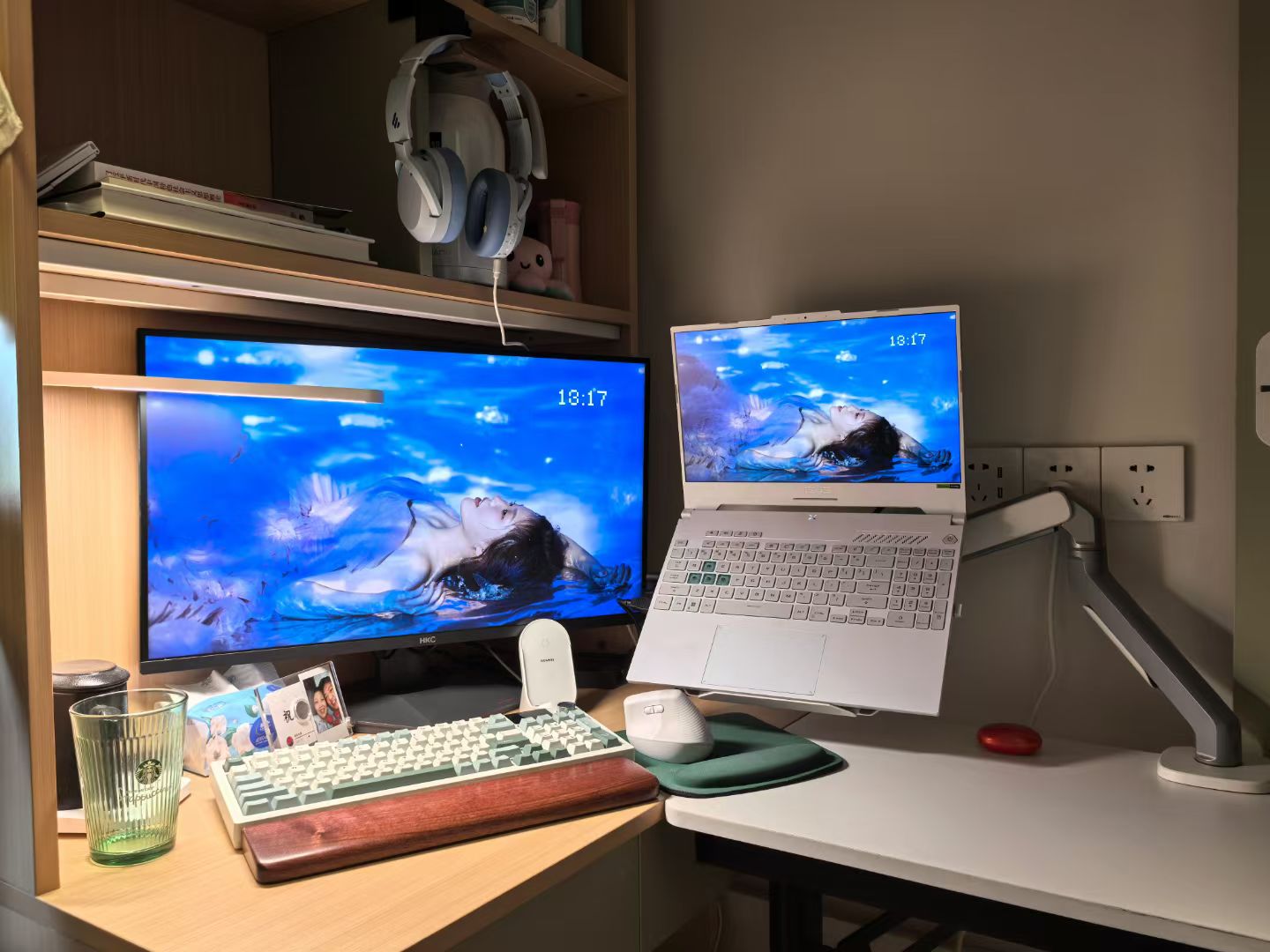
But I obviously cannot carry a monitor around with me. So what should I do during class? Of course, I should turn my tablet into a second screen.
There are actually quite a few solutions on the market already. In my opinion, the best one, and also an open-source solution, is Sunshine + Moonlight streaming. Sunshine is a self-hosted Moonlight streaming host responsible for capturing, encoding, and transmitting the screen; Moonlight is a compatible client responsible for receiving, decoding, and displaying the stream, while also sending input back. You can find plenty of tutorials for both tools on Bilibili, so I will not repeat them here. These two programs are usually used for game streaming: they stream a game running on a remote host to your tablet, then send your controls back to the remote computer, allowing you to play games remotely. However, all we need to do is use software like Parsec Virtual Display to create a virtual monitor, then stream that virtual monitor to the tablet. Just like that, we get a pretty good second screen.
Windows provides wireless display features, and some Android tablets also provide second-screen or cross-device collaboration features. However, on my own devices and network, their experience is still not as good as Sunshine + Moonlight. Also, I use a Huawei tablet
foreshadowing, and for reasons everyone knows, Huawei tablets cannot use the features available on newer Android versions.
Sunshine and Moonlight communicate through network protocols. When the network is good, the experience is excellent. But the school network environment is, well… At the same time, since our goal is to build a second screen, it would be better if we could replace the wireless connection with some kind of wired connection. That would give us better bandwidth, and therefore a better experience. One solution is to use the tablet’s “USB tethering” feature. Simply put, a USB cable connects the tablet and the computer into a virtual local network, allowing them to communicate through normal network protocols. This way, Sunshine and Moonlight can still use their original network protocol; the underlying carrier simply changes from Wi-Fi to a wired USB link. The actual bandwidth depends on the device, cable, and USB specification, but in a complicated campus network environment, a wired link usually brings a more stable connection and lower jitter.
Perfect, Right?
SideSlate
A couple of days ago, my tablet upgraded to HarmonyOS 6, and the “USB tethering” feature simply disappeared. After a friendly conversation with customer support, I sadly learned that this feature was indeed gone. I have no idea what Huawei’s engineers were thinking when they decided to remove a useful feature that existed in the lower version of the system from the higher version. All I can say is:
Thank you, Huawei.
But since we can no longer use “USB tethering” to get a faster network connection, why can’t I just write a second screen app that communicates through USB directly?
That is the original motivation behind SideSlate.
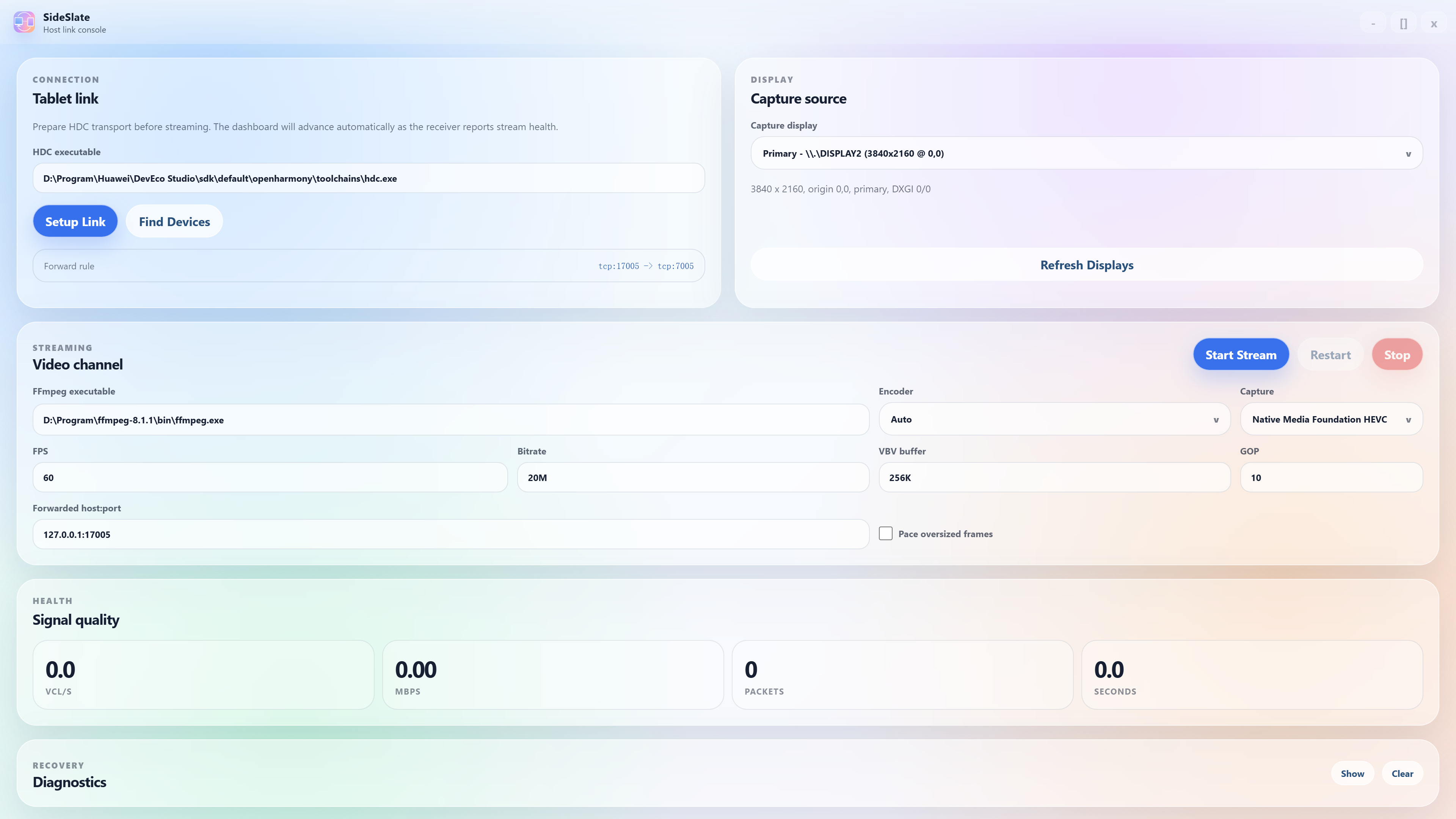
In SideSlate, all we need to do is select the display to stream, start the Client on the tablet to receive data, and then we can enjoy a low-latency, high-resolution streaming experience!
BTW, the current version of SideSlate does not directly implement a custom USB data channel. Instead, it uses HDC’s port forwarding capability to establish ordinary TCP Socket communication over a link carried by the USB cable. Therefore, before using it, you need to enable “USB debugging” in developer mode and authorize the computer to establish a debugging connection with the tablet.
So why not use raw USB communication directly?
Simply put, when a computer and a tablet are connected over USB, the computer usually acts as the USB Host, while the tablet acts as the USB Device. To perform custom USB data transfer directly at the application layer, the desktop side not only needs to handle USB interfaces and endpoints correctly, but the tablet system also needs to expose usable and stable read/write interfaces to the app.
AOA is one possible direction: it allows the computer, acting as the USB Host, to switch the Android device into Accessory Mode, then transfer data through USB bulk endpoints. But in my tests on my tablet, although the AOA control phase could complete, the returned file descriptor could not be read from or written to.
All I can say is:
Thank you, Huawei.
That is all for this article. My original intention was to recommend and explain Sunshine + Moonlight, a very useful streaming solution, while also expressing my supreme respect and admiration for Huawei’s engineers. Although SideSlate is another open-source solution developed by myself, I have not completed full testing yet because of recent exams. So I will open-source the project later when I have time. Stay tuned.